1What are the different user groups?
Hidden person, flanker, trail team and companion are assignments within an operation block. They are allocated for each run. Event-specific examiner access is described separately in the examination guide.
- Member: joins appointments, manages their profile and dogs, and sees permitted team and operation information.
- Trainer and co-trainer: prepare training, plan locations and trails, organise operation blocks and use available evaluations.
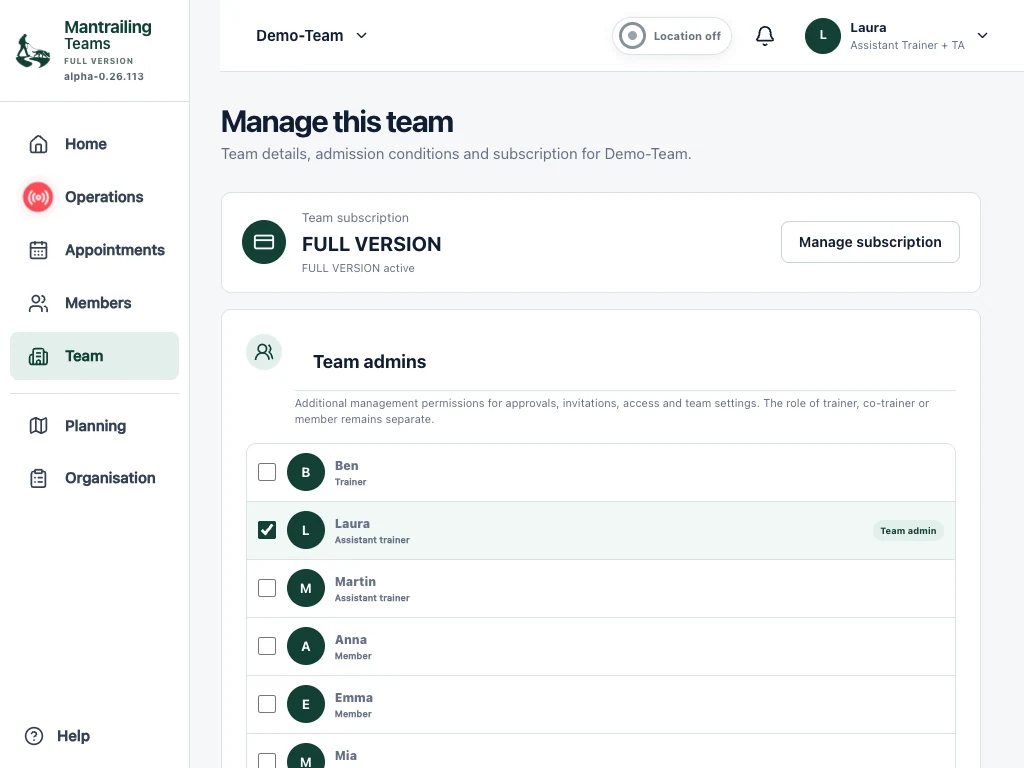
- Team admin: additional responsibility for membership, team settings, other team admins and the team subscription. A person can also be a trainer, co-trainer or member.
- Time-limited access: allows temporary participation. This limits the membership period; it is not a separate operation role.
2Invite and manage members
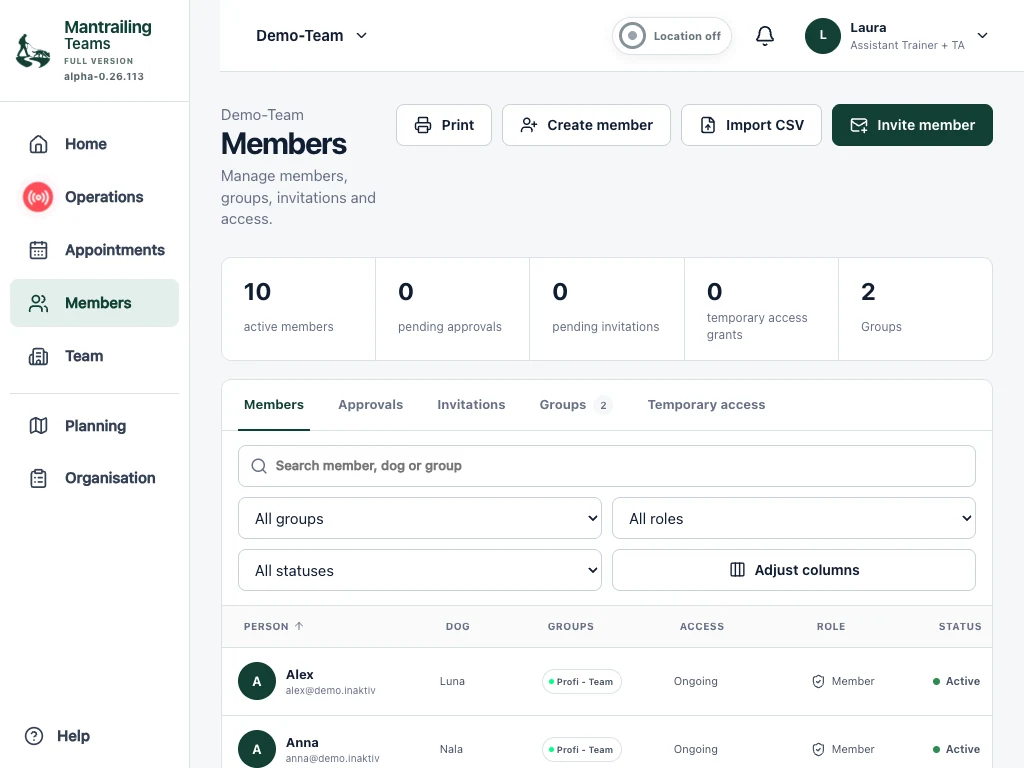
- Open Members. Team admins can manage members and invitations there.
- Create an invitation with the appropriate role. Choose permanent or time-limited access.
- The invited person follows the link and completes registration. Check the status afterwards: team settings may require additional approval.
- Open a member to edit permitted details, role, groups or access dates. Grant only the access needed.
3Team settings and responsibilities
- Open Team settings in the menu.
- Check the team name and automatic approval of invited members.
- Choose additional team admins. At least one responsible person must remain.
- Select the rulebook and check retention of evaluated hidden-person recordings. Save each changed setting.
4What does the Team area offer?
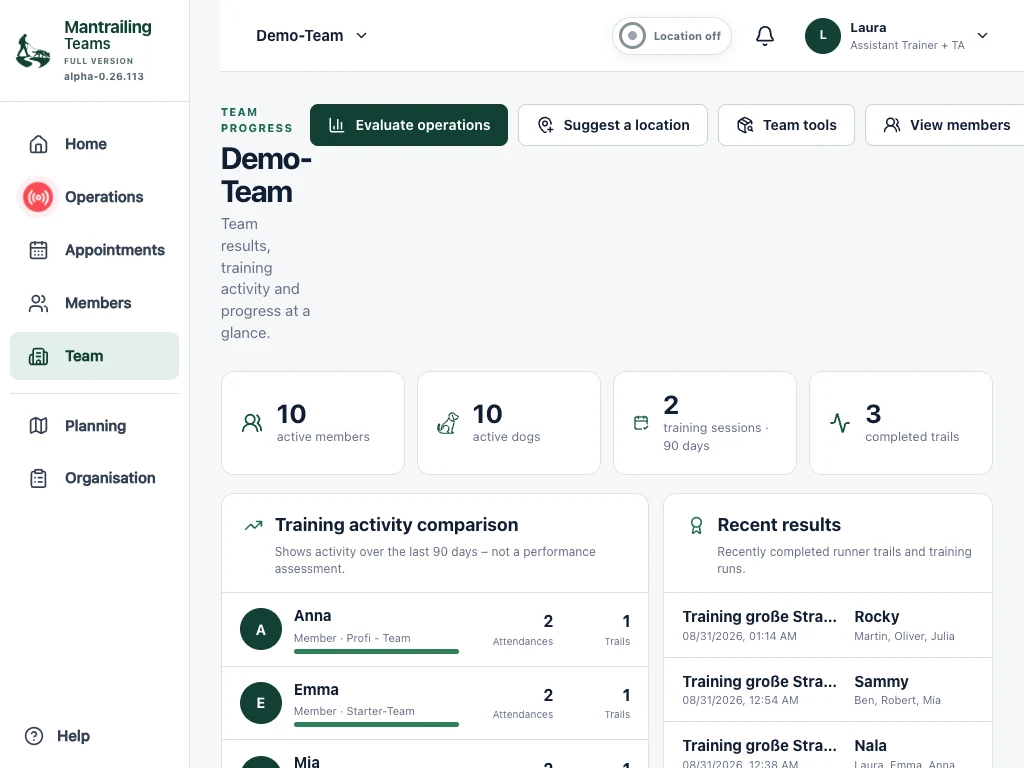
Team brings together member and dog counts, training activity, progress and recent results. Members can suggest locations for organisers to review. Groups help organise participants and offer targeted appointments.
The full version adds team tools such as equipment reservations, training diaries and explicitly confirmed transfers of locations or trails between teams. Your role also determines access. Linking accounts does not automatically share data with another team.
5Join more than one team
The connection code is private. Do not share it with other people or support. The link is visible only to you; roles, team data and subscriptions remain separate for each team. You can unlink the accounts in Profile.
- Get invited to each team you want to join. Your access must be approved there.
- Use the team selector at the top to switch between your available teams.
- If you have separate accounts of your own, open Profile in the other account and copy its private connection code.
- Return to the first account and choose Connect with more teams. Enter the code of your own other account. The approved teams become available in the same selector.
These tablet screenshots show Demo-Team and its Berlin trails. The booking view shows upgrading from the base to the full version.