1Open the training appointment
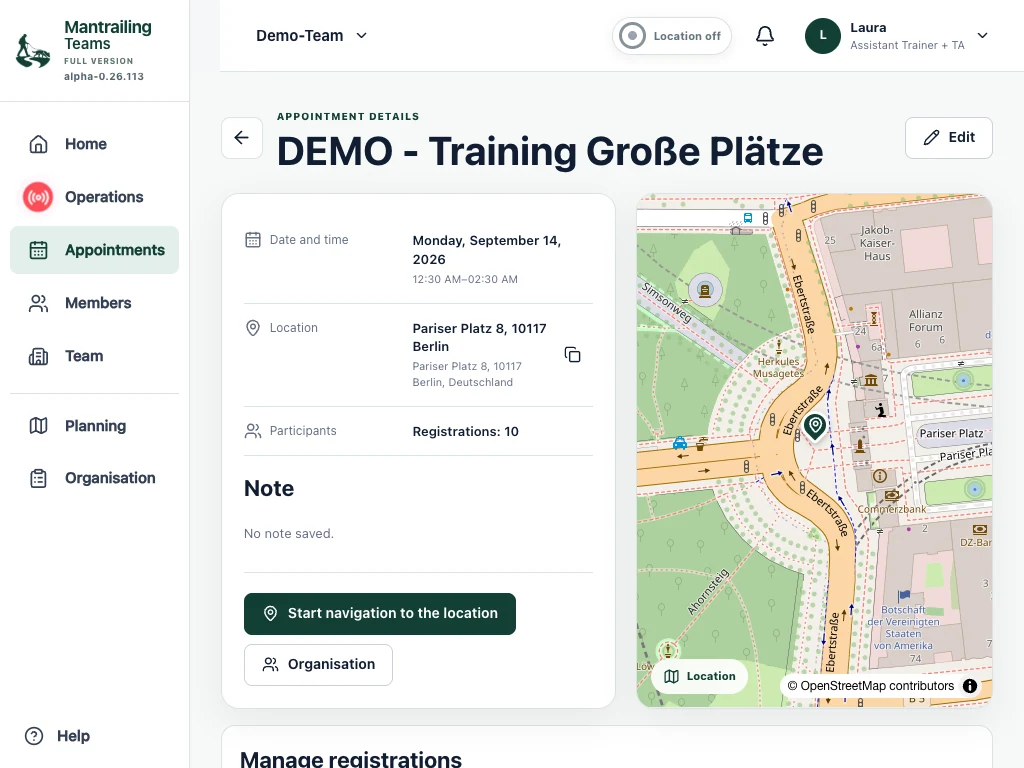
This guide follows Demo-Team at “DEMO - Training Große Plätze” in Berlin. The meeting point is Pariser Platz 8 at the Brandenburg Gate. Operation 1 uses “Pariser Platz 8 · Trail 03 · 664m”.
Anna is the hidden person. Ben accompanies the search as flanker. Mia and her dog Sammy are the trail team. Their assignments may change in later operations.
- Select your team at the top and open “Appointments”.
- Open the training appointment. Check the time, meeting point and instructions.
- Check your registration and dog. The training organisers assign the operation blocks.
2Who is running now, and when is it my turn?
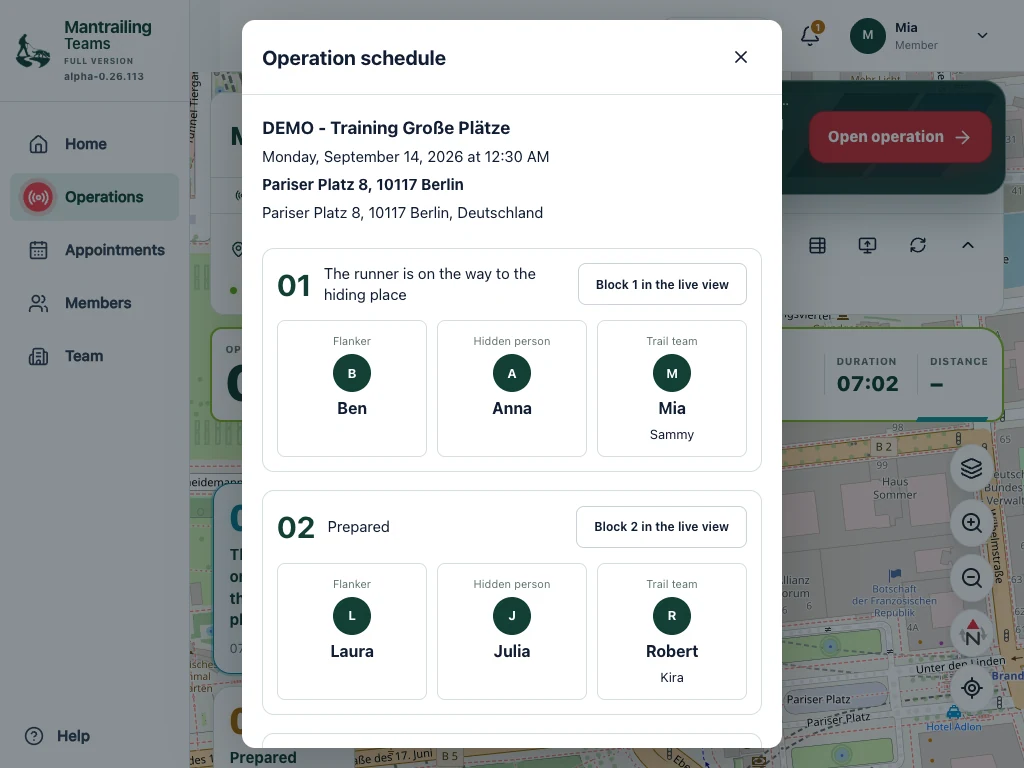
Use the operation schedule to find out. It lists the operation blocks you can access for the selected appointment, with their status and assignments. This lets you find your later tasks as well as the operation currently in progress.
- Open “Operations” and select the training appointment.
- Select the table icon labelled “Operation schedule” at the top. The schedule opens over the map.
- Scroll through the numbered blocks and look for your name. Each block shows your role: hidden person (VP), flanker or trail team. The trail team also shows the assigned dog.
- Compare your block number with the status of earlier blocks to see who is running and where you appear in the schedule. Check the later blocks too: you may have several assignments with different roles.
- For example, select “Block 2 in the live view” to follow that block on the map. The schedule closes. You can reopen it at any time using the table icon.
In the Berlin example, block 1 lists Ben as flanker, Anna as the hidden person, and Mia with Sammy as the trail team. The following blocks and their assignments appear below.
An assignment is not permission to start or an exact start time. The actual start depends on how the session progresses and the organiser’s call.
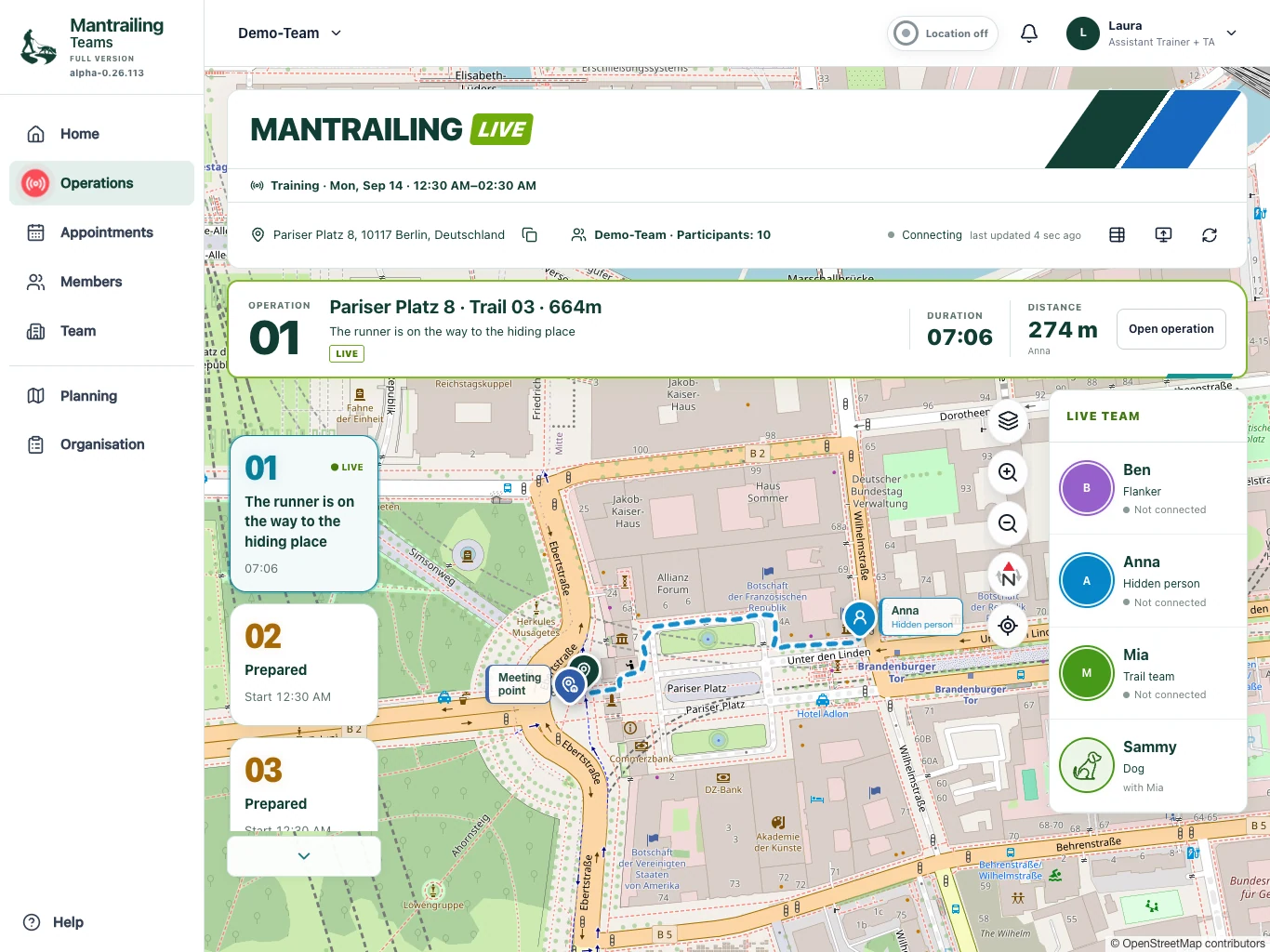
Back on the map, status, elapsed time and distance help you follow the run. The team display shows the participants’ latest reported status; “Online” does not guarantee that each position is current to the second.
3Follow your personal operation call
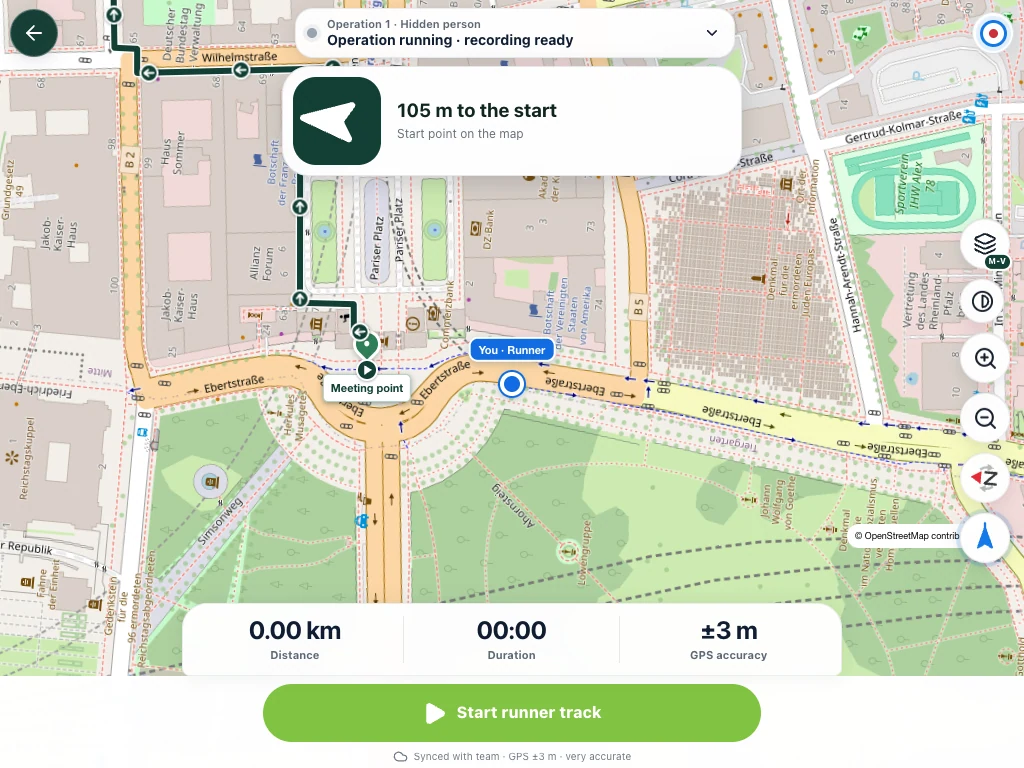
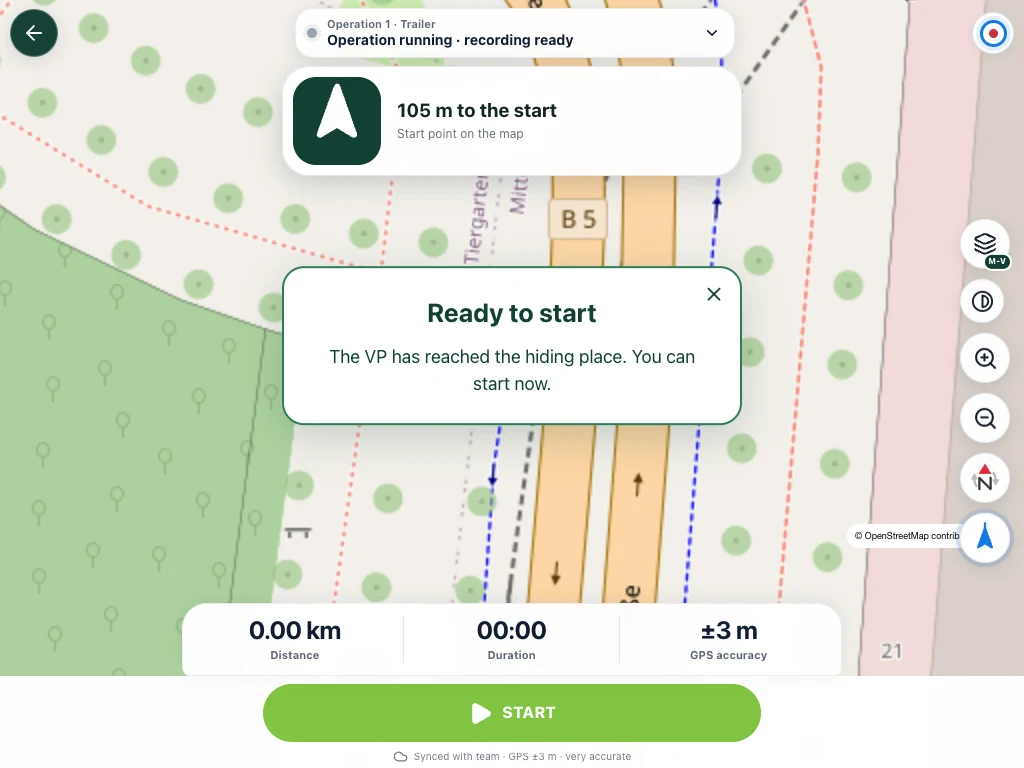
Your role and recording status appear at the top. Distance, duration, GPS accuracy and the actions for the current phase appear below. Your own position is marked on the map.
- When the organiser calls your block, check your name, operation number and task.
- Choose “Go to operation”. Anna opens her personal hidden-person view.
- Go to the agreed start point. Check GPS quality and the offered start action. A visible map alone does not mean recording has started.
4Anna lays the track to the hiding place
Charge your phone beforehand and allow the required location access. Recording with the screen locked also requires the appropriate background permissions. A missing or inaccurate position is not a reliable start point.
- Before leaving, check that the status says “Recording in progress”. If a start action is still offered, start recording. Depending on the operation, recording may also start automatically at the start point.
- Follow the agreed route. Here it is the prepared Berlin trail; the recording captures the path actually walked.
- Use “Photo” if you want to take a picture for the operation. Use “Pause” and the resume action to interrupt and continue recording.
- At the agreed hiding place, select “Hiding place reached” once. This ends the track and reports your arrival to the team.
5Wait at the hiding place
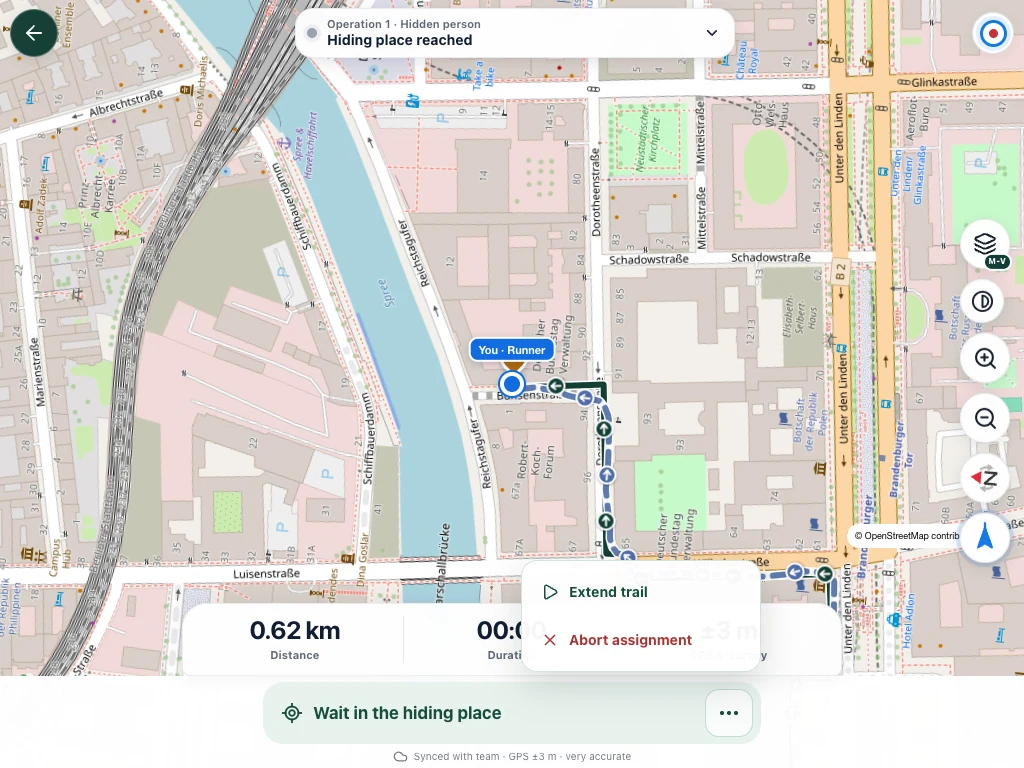
Once Anna’s arrival is confirmed, she waits for Mia, Sammy and Ben. An arrival confirmed by the system also counts; the same arrival does not need repeated confirmation.
- Check the “Hiding place reached” or “Wait at hiding place” status.
- If you need to move on by agreement, open the three-dot menu and choose “Extend track”. Report the new hiding place as reached afterwards.
- If the whole operation must end early, choose “Abort operation”. Read the confirmation carefully and confirm only an actual abort.
“Hiding place reached” is not an abort. “Abort operation” ends the shared operation early and informs the participants.
6Mia and Sammy start with Ben
Mia and Sammy search as the trail team. Ben supports them as flanker. They wait for permission while Anna is still walking or the start conditions have not been met.
- Check your task; as the trail team, also check the assigned dog.
- Wait for the search to be released and go to the agreed start point.
- Start the offered recording and check “Recording in progress”. Check the status even when the operation starts automatically.
- If permission to start does not appear, speak to the organiser. Do not start a different block as a workaround.
7Why not everyone sees the same track
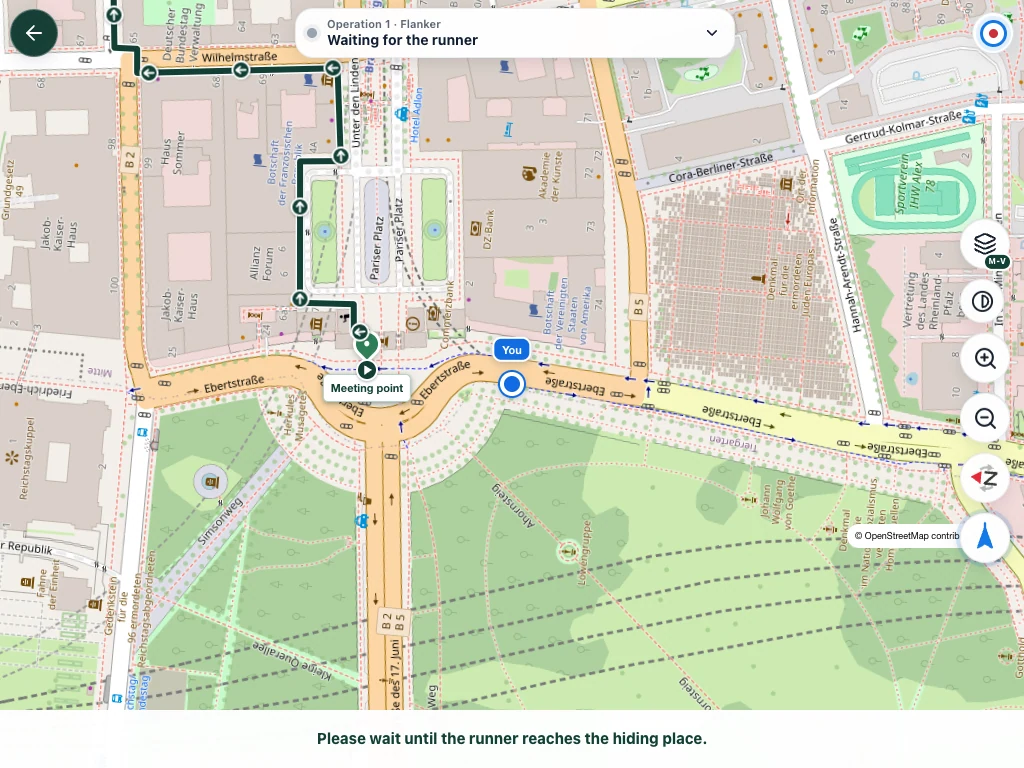
Mia is meant to solve the task with Sammy. The hidden person’s track may therefore be hidden from her, while her own path is recorded. This is not a loading failure.
Ben sees his own position, the permitted trailer track and, where allowed, the hidden-person track. Once Anna’s recording is available, it replaces the extra planning line. Ben’s own track stays hidden in the live map and is recorded in the background as a possible fallback. In double-blind mode, the reference is hidden from him too. Companions do not gain extra access to the hidden track.
The live overview and monitor respect the applicable visibility settings. Using another screen does not extend access.
8Use the map on the move
Keep watching traffic, paths and team instructions. Changing the map view does not change the recorded path. A phone recording follows the device, not every step of the dog. The ALT notice with a name and time refers to earlier saved routes or presence nearby; it does not establish the presence of scent.
- Move and zoom the map to orient yourself. The position button returns to your own position or following mode.
- Use the compass to orient the map. The map selector changes the base map.
- If the base map is too busy, reduce its prominence with the transparency control. Tracks and position markers remain highlighted.
9Finish with the correct outcome
Do not confirm a find to report an abort. Speak directly with the team if the status is unclear.
- When Mia and Sammy find Anna, open the finish action and confirm the actual find if the operation has not already finished.
- If the hidden person was not found and the operation must end, use the finish-without-a-find or abort action offered.
- Check the shared status and synchronisation. The organiser can then call the next block and discuss the run.
10When the connection is interrupted
Points already saved locally can be transferred when the connection returns. A server warning does not automatically mean your track is lost.
Check synchronisation before closing or signing out. Do not clear app data or uninstall while a recording still has points waiting to upload.
If a warning keeps returning despite a working connection, use “Help & Support”. Include the time, your role and your last action.
11Present the operation on a monitor
Present only information approved for that purpose. Changes to assignments and the operation sequence remain the organiser’s responsibility.
- In “Operations”, open the monitor icon for the selected appointment.
- Select the required block. Before presenting, check which names, positions and tracks are visible.
- Use the view on a larger screen, for example at an event or assessment. Participants can follow the current run and the prepared operations.
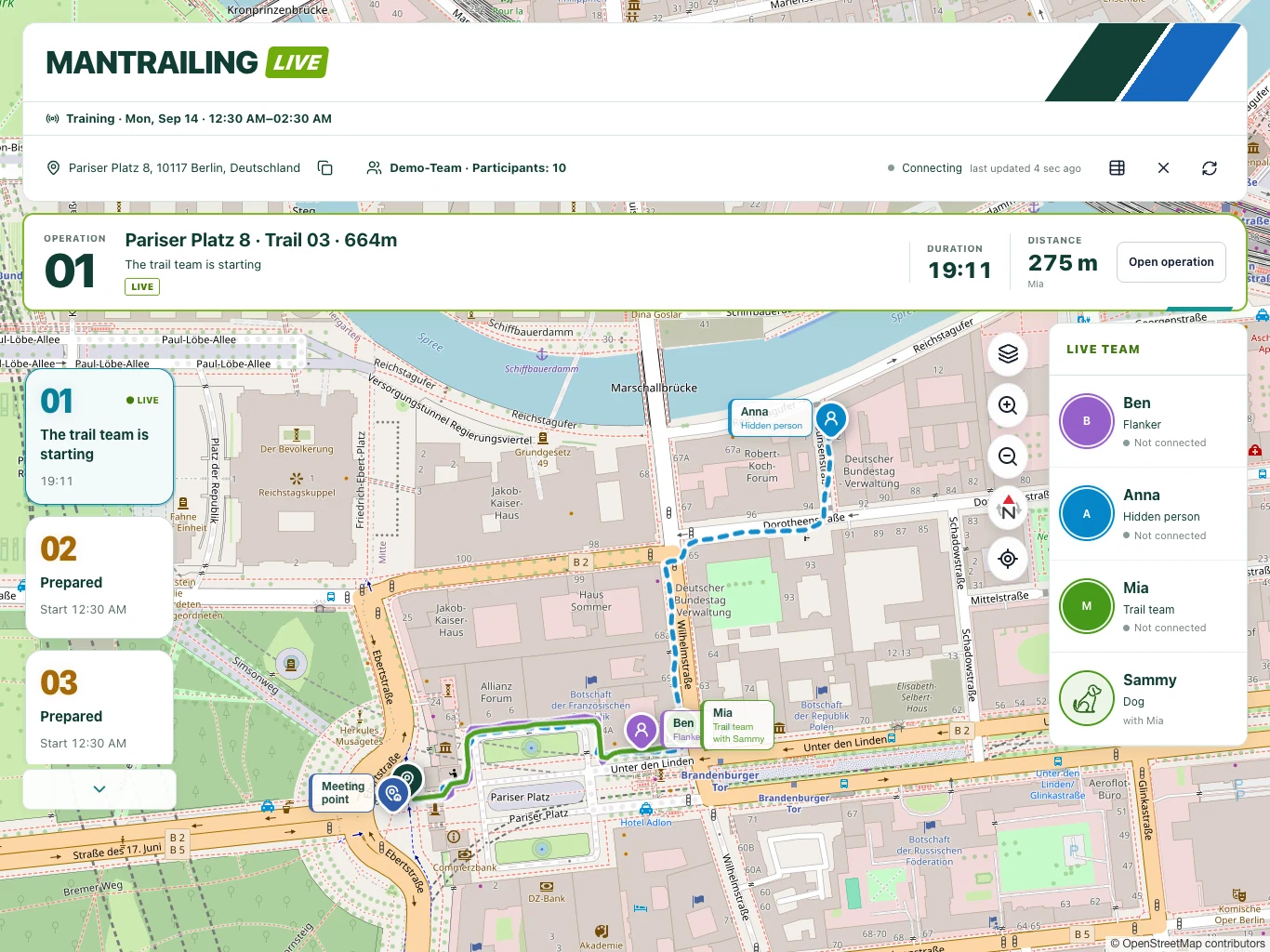
These tablet screenshots show Demo-Team and its Berlin trails. The booking view shows upgrading from the base to the full version.