How can we help?
Practical guides and answers for your training.
Guides
Step by stepTaking part in live operations
An operation at the Brandenburg Gate: follow Anna, Ben and Mia with Sammy from the call to the find.
Open guide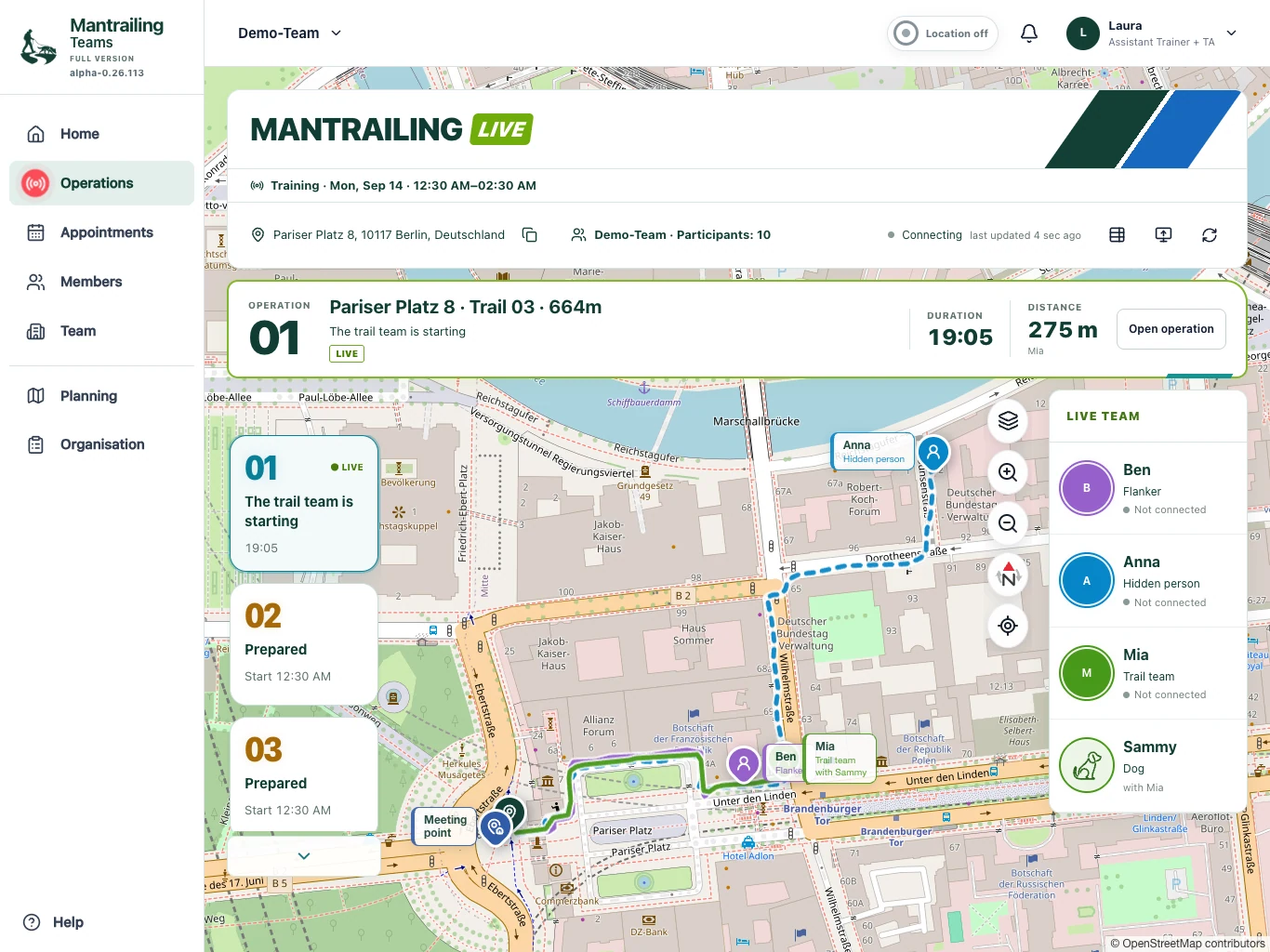
Mantrailing glossary
From scent articles to trail layers: mantrailing vocabulary, abbreviations and the terms used in Mantrailing Teams, explained simply.
Create and update appointments
Arrange a session, manage participation and communicate changes clearly.
Organise operations
Prepare locations and trails, assign roles and call operation blocks.
Examination rules and examiner mode
Choose a rulebook, submit missing rules and use event-specific examiner access.
Location and privacy
When positions are collected, how you control this and who can see which information.
Frequently asked questions
Can I present operations on a monitor?
Yes. Use the monitor icon in Operations, for example at events or examinations. Check the visible names, positions and trails first. A monitor does not extend permissions and should not reveal confidential or examination-related hiding places.
Read more: Taking part in live operationsHow do I select our examination rules?
As a team admin, open Team settings and Examination rules. Select the rulebook, check its association and version and save. The app supports preparation and documentation; the examination team assesses performance.
Read more: Examination rules and examiner modeCan we provide a missing rulebook?
Yes. Select the missing-rulebook option and enter the organisation, title, description and preferably a link to the complete current rules. The submission is reviewed so the rules can be added. Contact support to arrange delivery of a file.
Read more: Examination rules and examiner modeHow does examiner mode work?
Organisers invite an examiner from Organisation for an event or examination. The link opens reduced examiner access and can be connected to an existing account. Examiners see only authorised appointments, operations and read-only organisation. They cannot start anything and do not share their own location. The optional find confirmation updates the shared find status.
Read more: Examination rules and examiner modeHow do I prepare locations and trails?
Open Planning, select or create the location and check its meeting point. Draw the trail and save it with a clear name and suitable visibility. Later, assign it to an appointment’s operation block in Organisation.
Read more: Organise operationsHow do I fill and start an operation block?
Select the appointment in Organisation and create a block. Assign the hidden person, flanker and trail team with its dog. Check the trail, visibility and starting sequence, then use the offered release or call. Follow progress in Operations.
Read more: Organise operationsHow do I plan a diversion?
Assign a planned decoy as an additional trail layer with their own route and starting sequence, or mark them as already hidden. They are not the main target or merely a companion. The broader training term also includes other distracting scents or routes.
Read more: Organise operationsHow do I change an appointment or series?
Open the appointment’s editing view, change time, meeting point or instructions and save. For a series, deliberately choose whether only this appointment or future ones are affected. Use cancellation for a session that will not happen and inform the team.
Read more: Create and update appointmentsWhat if these FAQs do not answer my question?
Use the contact option below. Describe your question and name the team. For an app issue you can also send a report under Help & Support. Never include passwords, private connection codes or payment details.
Still looking for an answer?
Use the contact option. We are happy to help.